> ## Documentation Index
> Fetch the complete documentation index at: https://docs.watt.ma/llms.txt
> Use this file to discover all available pages before exploring further.
# Start Charging via QR Code on watt.ma
> Scan the station's QR code from the Charge hub to launch a session and track power, energy, and cost in real time in the app.
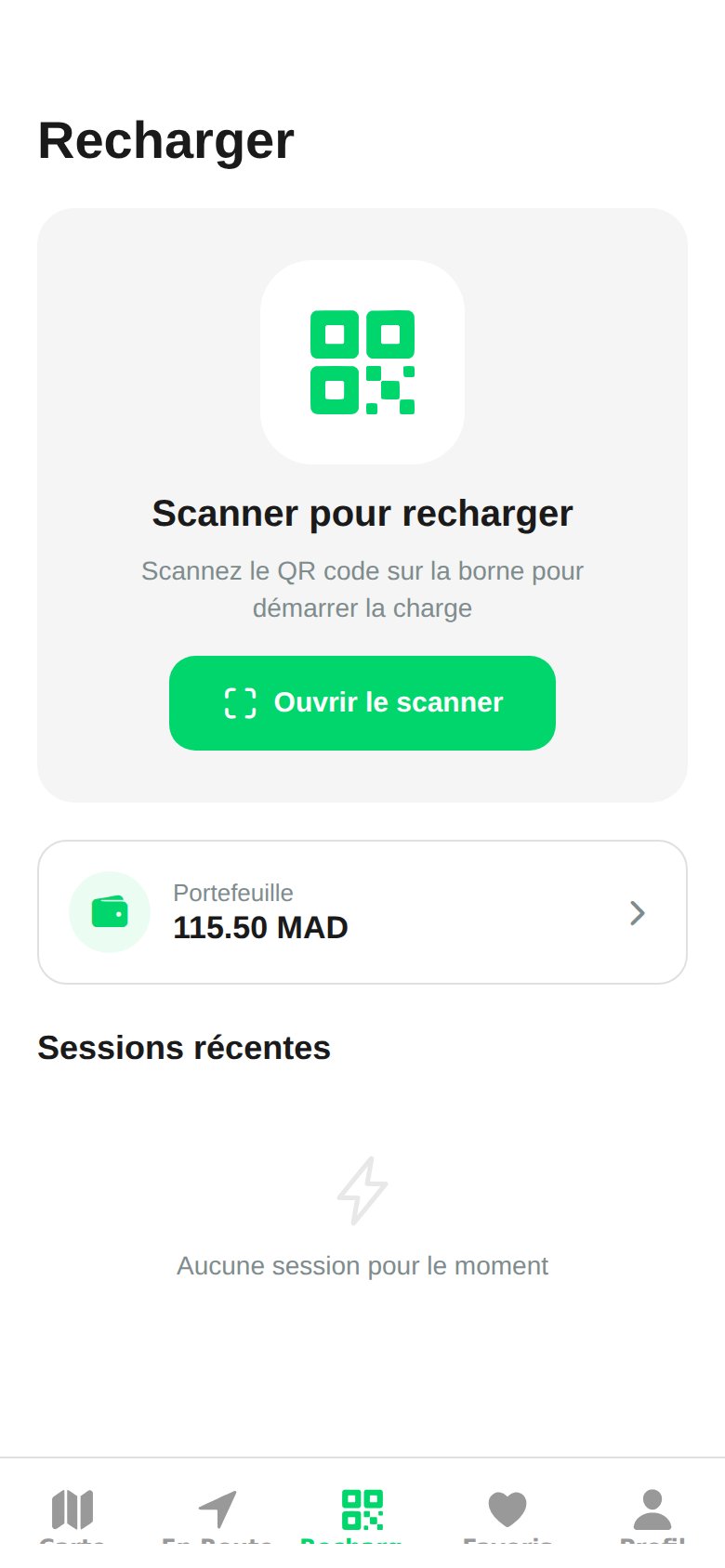
From the watt.ma app, you start a charging session by scanning the station's QR code from the **Charge** tab. This page describes the full flow and real-time session tracking.
 ## Pre-Authentication
Before launching your first session, you must have:
1. Created an account via the **Sign Up** screens (name and phone number validation).
2. Validated your number with the 6-digit OTP received by SMS (auto-advance input).
3. Set up a payment method in the wallet (see [Payment](/en/app-mobile/paiement)).
In **Mock Mode**, any 6-digit OTP code is accepted. This is useful for testing the flow without depending on an SMS provider.
## Launch a Session
Tap the **Charge** tab at the bottom of the screen. This is the app's QR hub.
The app opens the camera via `expo-camera`. Point it at the QR code displayed on the station to trigger the session.
Verify the pricing and connector shown on screen, confirm, and plug in your vehicle.
## Session Tracking
Once the session is launched, the app displays in real time:
* The **instantaneous power** (43 kW by default in Mock Mode)
* The **energy delivered** in kWh
* The **elapsed time** since the start
* The **cumulative cost** in dirhams
Connector commands rely on the OCPP protocol. In Mock Mode, values are simulated and updated every second. Once `EXPO_PUBLIC_MOCK_MODE=false`, the app sends real commands to the backend via `OCPP_BACKEND_URL`.
## Stop the Session
Tap **Stop** in the app to end the session. The final amount is debited from the prepaid wallet and the transaction appears in the [history](/en/app-mobile/historique).
Do not unplug the cable before stopping the session in the app. Some vehicles lock the connector while the session is active.
## Pre-Authentication
Before launching your first session, you must have:
1. Created an account via the **Sign Up** screens (name and phone number validation).
2. Validated your number with the 6-digit OTP received by SMS (auto-advance input).
3. Set up a payment method in the wallet (see [Payment](/en/app-mobile/paiement)).
In **Mock Mode**, any 6-digit OTP code is accepted. This is useful for testing the flow without depending on an SMS provider.
## Launch a Session
Tap the **Charge** tab at the bottom of the screen. This is the app's QR hub.
The app opens the camera via `expo-camera`. Point it at the QR code displayed on the station to trigger the session.
Verify the pricing and connector shown on screen, confirm, and plug in your vehicle.
## Session Tracking
Once the session is launched, the app displays in real time:
* The **instantaneous power** (43 kW by default in Mock Mode)
* The **energy delivered** in kWh
* The **elapsed time** since the start
* The **cumulative cost** in dirhams
Connector commands rely on the OCPP protocol. In Mock Mode, values are simulated and updated every second. Once `EXPO_PUBLIC_MOCK_MODE=false`, the app sends real commands to the backend via `OCPP_BACKEND_URL`.
## Stop the Session
Tap **Stop** in the app to end the session. The final amount is debited from the prepaid wallet and the transaction appears in the [history](/en/app-mobile/historique).
Do not unplug the cable before stopping the session in the app. Some vehicles lock the connector while the session is active.